

Modes
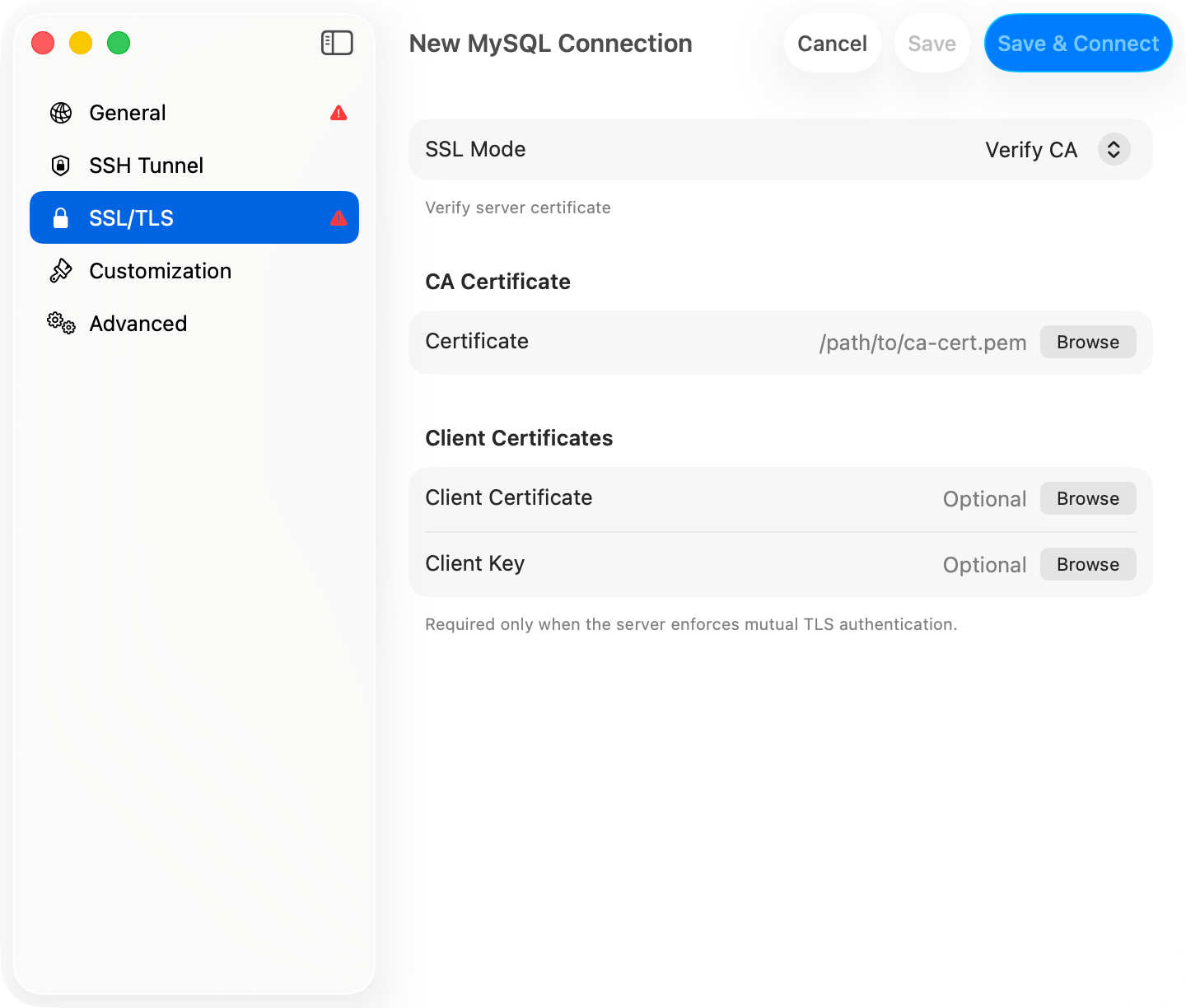
SSL/TLS pane in the connection form
Certificate fields
The certificate rows appear only once SSL Mode is anything but Disabled. Each takes a file path, with Browse to pick one.
SQL Server shows no certificate fields at all. FreeTDS takes no per-connection paths and trusts the system store; a custom trust anchor goes in
freetds.conf instead.
Per-driver defaults
A new connection starts on the mode that matches the driver’s own default, and the pane prints that driver’s guidance under the picker where there is any.Behind a tunnel
Verify CA and Verify Identity do not survive a tunnel. An SSH tunnel, Cloudflare tunnel, Cloud SQL Auth Proxy, or SOCKS proxy has the driver connect to127.0.0.1, and no server certificate is issued for that, so the mode drops to Required for the tunneled connection and the certificate paths are cleared. TLS itself still runs the whole way to the database; only the certificate check goes. If you need the check, reach the server without a tunnel.
Forwarding to a unix socket drops TLS altogether, because a socket cannot negotiate it. The SSH tunnel encrypts that path instead.
Troubleshooting
A TLS failure is reported with the cause, a mode to switch to, and the driver’s own response underneath, password redacted:“FATAL: no pg_hba.conf entry for host … no encryption”
The PostgreSQL server requires SSL and the connection is set to Disabled. Switch to Preferred or Required (skip verify).”Connections using insecure transport are prohibited”
The MySQL server hasrequire_secure_transport=ON. Switch to Preferred or Required (skip verify).
”SSL handshake failed” / “tls handshake failed”
Driver and server share no TLS version or cipher. Update the server, or on a development box drop to Required (skip verify).“certificate verify failed” / “self-signed certificate”
The server’s certificate chains to nothing in the system trust store. Set Verify CA and fill Certificate with the CA’s PEM, or drop to Required (skip verify) to skip validation.”hostname does not match certificate”
The certificate’s CN or SAN does not cover the host you typed. Switch to Verify CA, which still validates the chain, or change Host to a name the certificate covers.”client certificate required”
The server enforces mutual TLS. Fill in Client Certificate and Client Key.”client private key is encrypted” / “passphrase is incorrect”
Enter the key’s passphrase in Key Passphrase, which appears once Client Key has a path.On iPhone and iPad
Four modes, Preferred excluded. MySQL, MariaDB, PostgreSQL, Redshift, and Redis get CA Certificate, Client Certificate, and Client Key rows alongside them; Oracle gets the four modes with no certificate rows, and SQL Server only Disabled and Required. Each row takes a file or pasted text. Client Certificate also accepts a PKCS#12 (.p12 or .pfx) and fills in both the certificate and its key from it. iOS cannot read a .p12 exported without a password, and rejects a private key carrying its own passphrase: strip the passphrase or export a .p12.
Imported certificates never leave the device and never sync, so a connection set up on the Mac needs them imported again on each iPhone and iPad. See TablePro for iPhone and iPad.