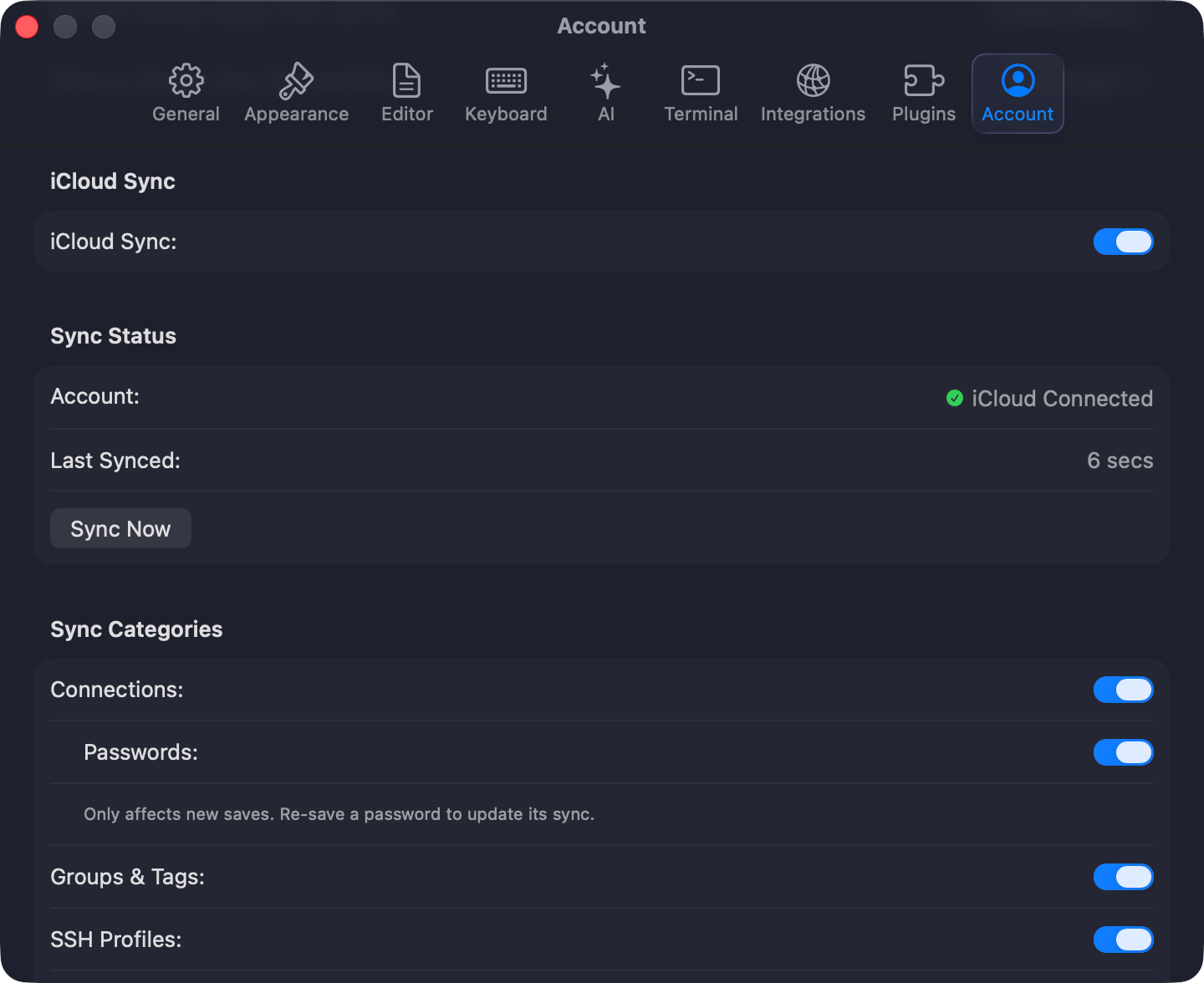

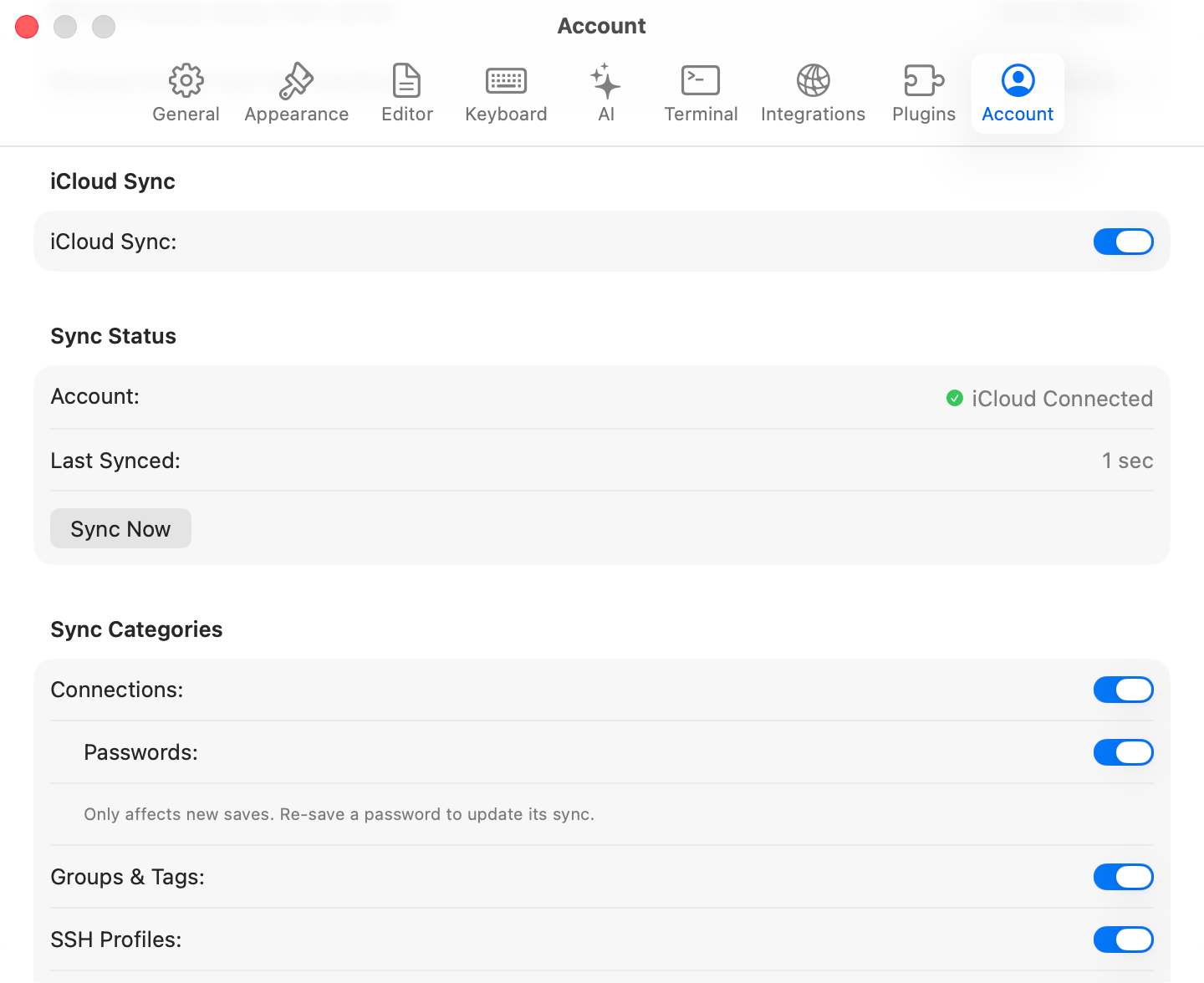
Sync needs a Starter or Team license and starts off. Press Cmd+,, open Settings > Account, turn on iCloud Sync, pick the categories, and click Sync Now. The iPhone and iPad app shares the same CloudKit data but carries connections, groups, and tags only.
iCloud Sync settings

iCloud Sync settings

What syncs

Each synced category has its own toggle under Sync Categories. A sync runs at launch, when you switch back to the app, and 2 seconds after you change anything synced.

Keeping a connection off iCloud

A localhost or throwaway database is rarely worth a round trip. Mark it Local only in the connection form’s Advanced pane, or right-click it and choose Exclude from iCloud Sync. They show a struck-through cloud icon in the connection list, and the flag survives duplicating and exporting.

Checking that it worked

The Sync Status section answers this: Account reads iCloud Connected or Not Available, Last Synced gives the relative time of the last successful run, and a failure prints in red under Sync Now. When the same connection changed on two devices, TablePro merges field by field, so a name edited on one Mac and a port edited on the other both survive. When one field changed in both places, the device that syncs last wins.

Troubleshooting

If nothing syncs, confirm iCloud is signed in and iCloud Drive is enabled, then click Sync Now. For “iCloud account unavailable”, sign in through System Settings > Apple Account. Signing into a different iCloud account clears TablePro’s sync metadata, so the next sync is a full fetch rather than a delta. Expect it to take longer once. When a license expires, sync stops and local data stays where it is. Re-activate to resume.