

Cmd+[ indents in the SQL editor and pages back in the data grid, and neither one shadows the other. Everything here is the shipped default, and most of it is rebindable in Settings > Keyboard.
Same key, different pane
The grid meanings come back the moment you click into the grid, and
Delete on its own always deletes the selected rows. Cmd+W follows the same rule across the whole window; see Tabs and windows.
Essential
SQL editor
Query execution
File operations
Text editing and find
Every row except Find Next and Find Previous is built into the editor and cannot be rebound. Standard macOS text navigation and clipboard keys also apply.
Data Grid
Navigation and selection
Editing
Truncate table opens a dialog with Cascade and Ignore foreign key checks, then stages a pending truncate that
Cmd+S runs.
Clipboard
Cmd+C copies a drag-selected range as TSV, a single focused cell as its value, and otherwise the selected rows as TSV.
Pagination
Filtering
See Filtering for the filter bar itself.
Import and export
Tabs and windows
Cmd+W closes whatever is in front. In a connection window that is the current editor tab, and the File menu reads Close Tab. Settings, Integrations, a JSON or PHP viewer, and the welcome window have no tabs, so it closes the window and the menu reads Close Window. While the connections strip holds the keyboard it closes the highlighted connection, and the menu names it.
Connections
Sidebar, panels, and view
With the sidebar focused, typing the first letters of an object’s name jumps to it.
Result tabs
Query history drawer
With the drawer open (Cmd+Y) and its entry list focused, Return loads the selected entry into the editor, Delete removes it, and Cmd+C copies its query. Cmd+Y hides the drawer again.
Welcome window
Ctrl+J/Ctrl+N and Ctrl+K/Ctrl+P also move the selection in Open Quickly, where Cmd+Enter and Option+Enter open the selected item in a new tab.
CSV inspector
See CSV Inspector.
Vim mode
Turn on Vim mode in Settings > Editor. Vim keys apply only in the SQL editor; the data grid keeps its shortcuts, andCmd+Enter runs the query in any mode. See Vim Mode for the key reference.
Customizing shortcuts
Open Settings > Keyboard (Cmd+,). Each action has a recorder field: click it and press the new combination, and the menu bar updates immediately. Actions are listed under their own names there: the sidebar toggle is Toggle Table Browser. Filter with the search field, press Delete in a recorder field to clear a binding, click the curved-arrow button beside a changed shortcut to restore that one, or Reset to Defaults to restore all.
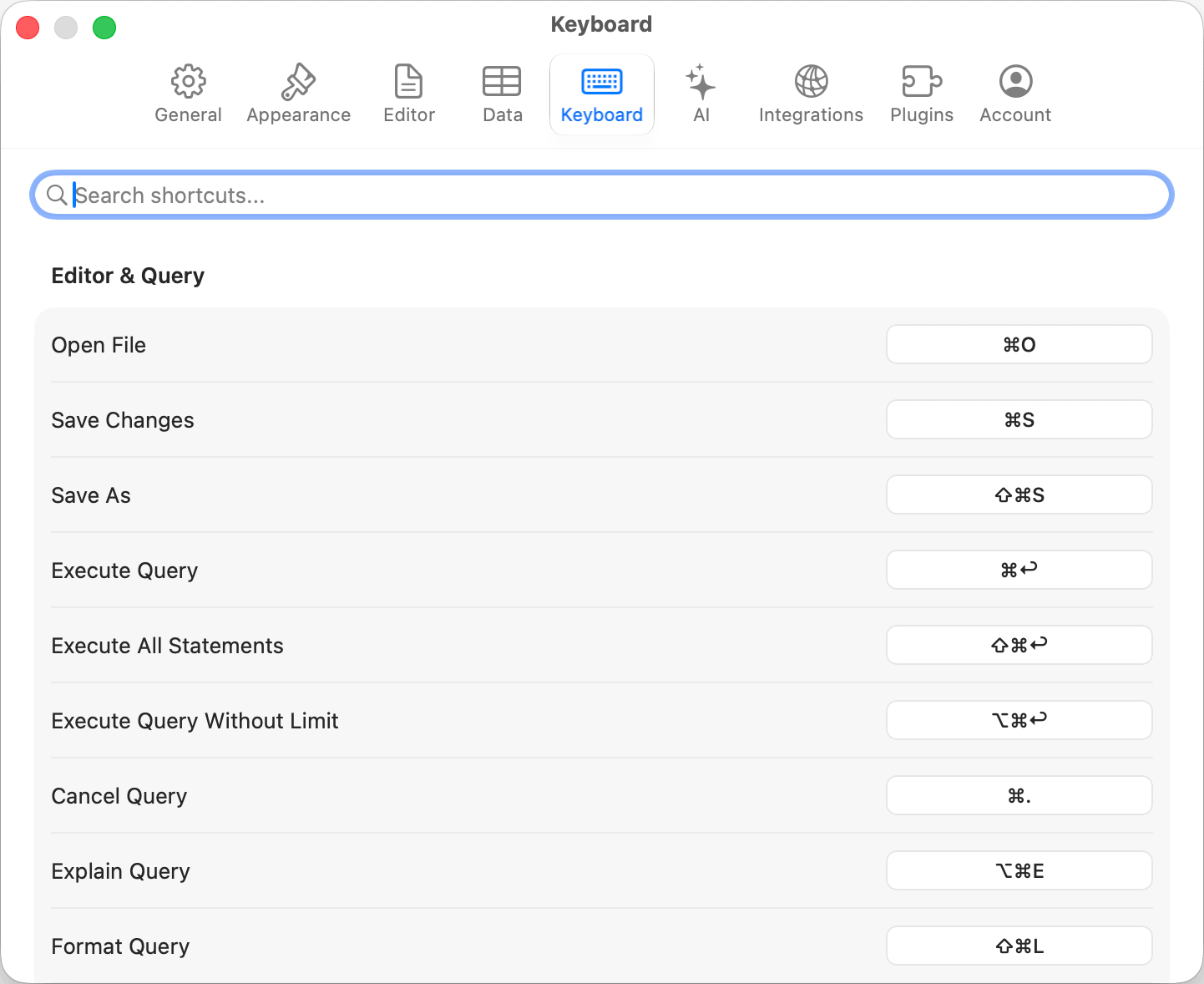
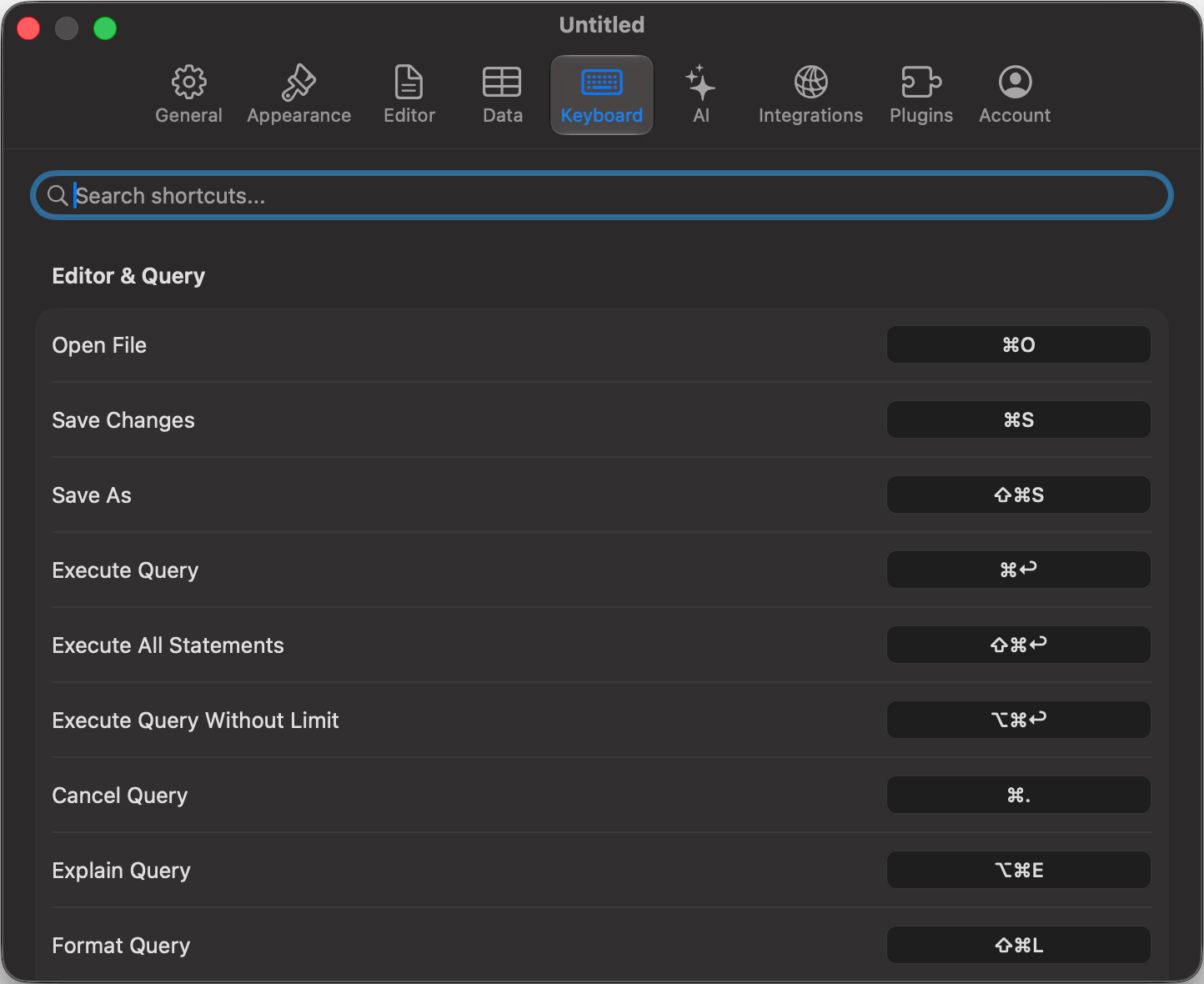
Keyboard shortcut customization
Cmd, Option, Ctrl, or Shift); function keys F1 through F12 work bare, as do grid actions that read the key directly, like Preview FK Reference (Space).
Some shortcuts cannot be reassigned: editor built-ins such as
Cmd+/, tab selection (Cmd+1 through Cmd+9), text size (Cmd+=, Cmd+-), Find (Cmd+F), and macOS system shortcuts, which are read live from System Settings. The recorder warns if you try.Outside the app
Drive the app with no keyboard at all: the Raycast extension, thetablepro:// URL scheme, and MCP clients are covered in the External API section.